Best Clipping Software for Gaming: What Streamers Should Look For
A practical way to choose gaming clipping software based on how you record, review, edit, and repurpose your clips.
The best clipping software for gaming depends on where the footage begins. Live streamers usually need a recorder with a reliable replay buffer. Creators sitting on long Twitch VODs need a way to find the good parts faster. Editors making polished YouTube videos need a real timeline. Shorts, TikToks, and Reels call for fast vertical formatting.
For most gaming creators, the cleanest setup is one capture tool and one clipping tool. Record the session or stream first, then use a gaming-focused AI workflow like FragCut's Twitch clip maker when the slow part is finding highlights inside long VODs, not recording the match.
Best Clipping Software for Gaming: Quick Decision Table
| Workflow | Best fit | When to choose it | Who should avoid it |
|---|---|---|---|
| Live replay recording | OBS, NVIDIA App, Steam Game Recording, console capture | You want to save kills, clutches, deaths, or funny moments while playing. | Avoid if you only edit from Twitch VODs and do not want local recording setup. |
| AI VOD clipping | AI gaming clip maker for Twitch streams | You stream for hours and need highlight candidates for Shorts without scrubbing the full VOD. | Avoid if you need frame-by-frame cinematic edits or heavy motion graphics. |
| Manual editing | DaVinci Resolve, Premiere Pro, Final Cut, CapCut desktop | You are making polished YouTube videos, montages, sponsor segments, or story-driven edits. | Avoid if you need same-day clips and do not have editing time. |
| Short-form repurposing | Vertical clip editors and caption tools | You already know the moment and need 9:16 framing, captions, pacing, and platform exports. | Avoid if you still need to find the highlight first. |
| Platform-native clipping | Twitch clips, Steam clips, console share tools | You need the fastest possible save-and-share option with minimal setup. | Avoid if you want consistent branding, batch exports, or deeper editing control. |
Start With the Footage Source
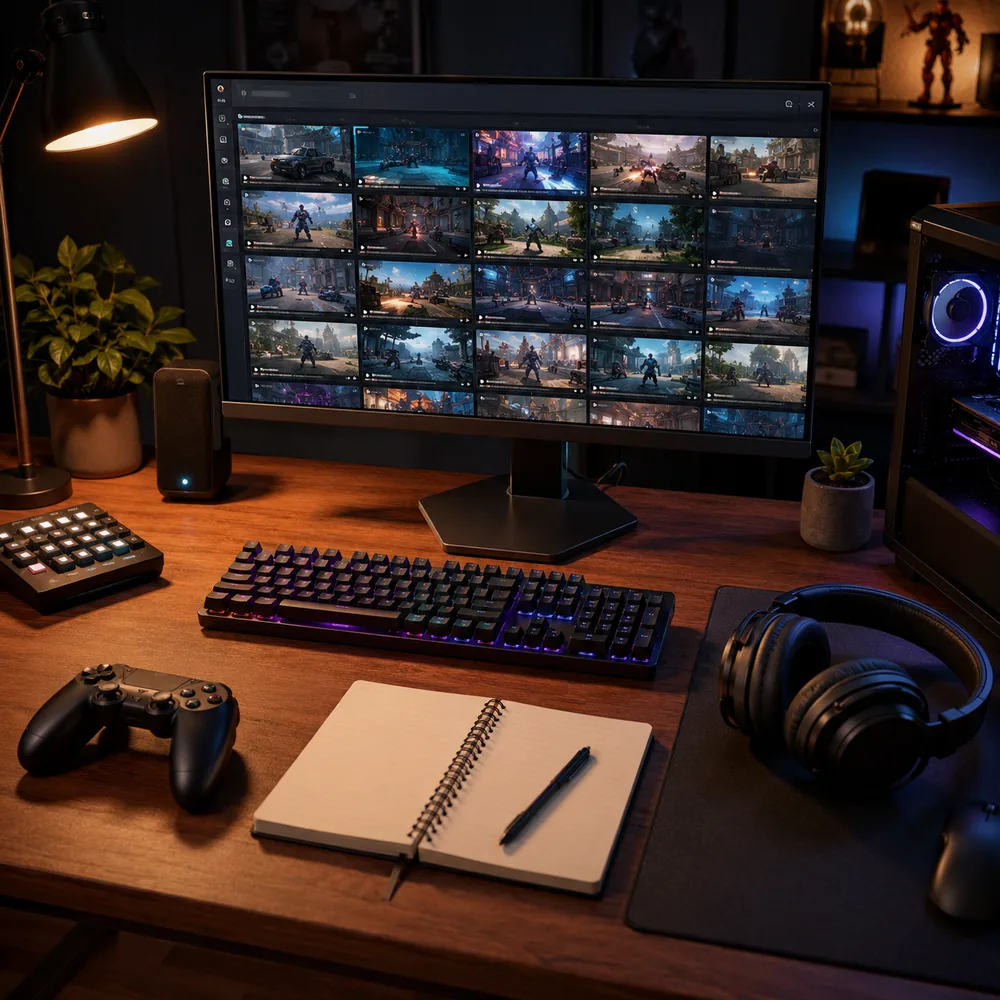
A gaming clip maker should fit the source of the moment. A Valorant ace that happens live needs a hotkey or replay buffer. A three-hour Twitch stream needs search, trimming, captions, and export tools. A planned YouTube montage needs timeline control, audio cleanup, and color work.
Do not compare every tool as if it handles the same job. OBS is strong when you need scenes, sources, audio tracks, and local recordings. An AI VOD clipper makes more sense when the recording already exists and you need to pull out the best parts quickly.
Live Recording Tools: Best for Instant Moments
Live recording tools are best when the clip depends on a fast reaction: a last-player-standing clutch, a ranked meltdown, a perfect speedrun split, or a sudden squad wipe. The software needs stable capture, low performance cost, and hotkeys that still work while the game is focused.
OBS is the most flexible option if you want control over scenes, sources, recording paths, encoders, hotkeys, and replay buffer behavior. The official OBS Studio overview is worth reading before you build a capture setup, especially if you need separate settings for streaming and recording.
NVIDIA users may prefer hardware-assisted capture through the NVIDIA App because ShadowPlay and Instant Replay are built for saving recent gameplay without much setup. Steam's Game Recording FAQ also explains background recording, timeline markers, clips, and exports from Steam.
AI VOD Clippers: Best for Stream Highlights
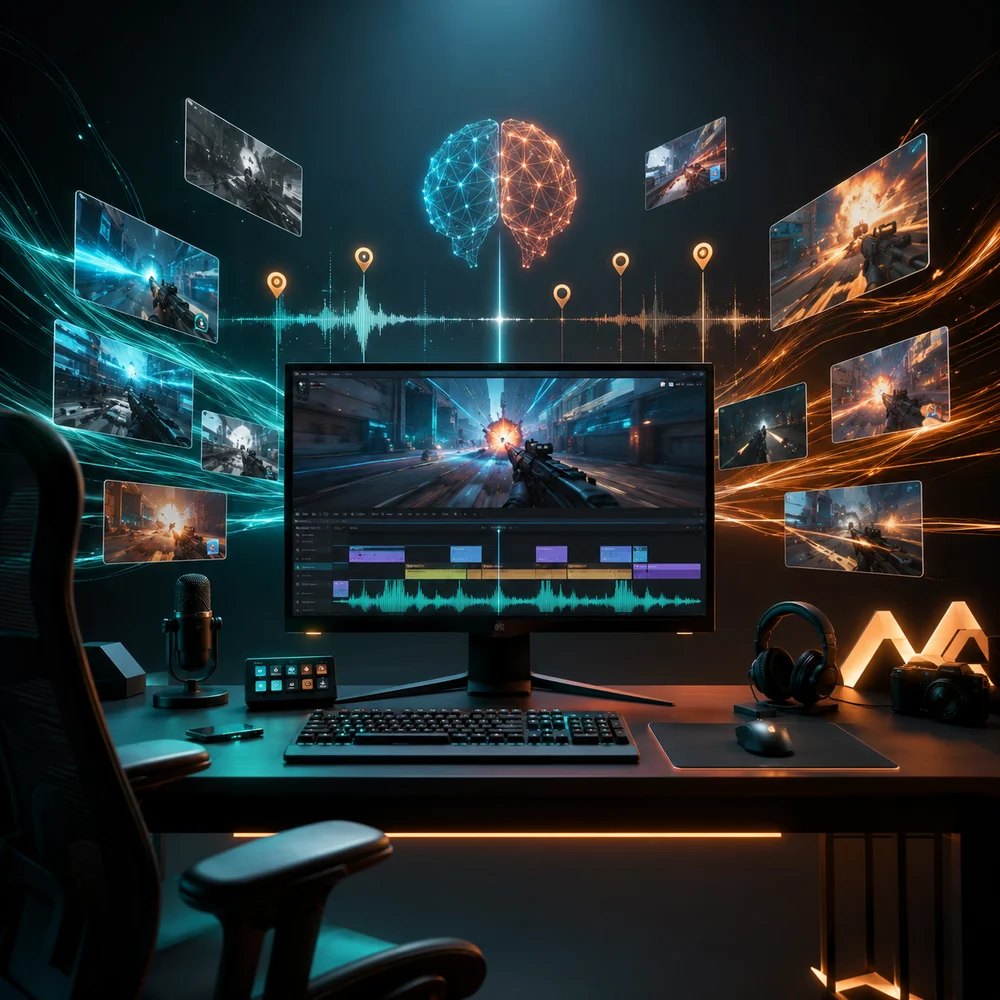
AI VOD clipping helps when the problem is volume. A two-hour Twitch stream might have five clips worth posting. The hard part is finding them, keeping enough setup, and turning them into vertical posts without spending the next day in an editor.
This workflow fits streamers who play ranked Valorant, Fortnite, Apex Legends, League of Legends, Minecraft SMPs, or variety games where the best clip might be a reaction, a joke, a comeback, or a messy team fight. The tool should understand gaming pace better than a generic meeting or webinar summarizer.
If your source is Twitch, look at the full workflow: import the VOD, spot likely highlights, trim the setup and payoff, format for vertical platforms, and export with readable captions. For a step-by-step breakdown, read how to turn Twitch VODs into clips before you pick a tool.
Manual Editors: Best for Polished Gaming Videos
Manual editors are still the right choice when the edit is part of the reason people watch. A frag movie, sponsor read, cinematic intro, essay-style breakdown, or long-form YouTube upload needs judgment that automation should not replace.
Choose a manual editor when you need multi-track audio, beat cuts, subtitles with exact timing, motion graphics, zooms, color correction, or careful pacing. A timeline also helps when the clip needs context, such as two failed retakes before the clutch finally lands.
Avoid making a heavy editor your first clipping tool if you mostly post daily Shorts. Opening projects, organizing media, and exporting simple clips can take longer than the actual edit.
Short-Form Repurposing Tools: Best After the Moment Is Found
Short-form tools work best once you already know what the clip is. Their job is to turn a horizontal gameplay moment into a vertical post with readable action, captions, framing, and a strong first second.
Gaming clips are easy to ruin in vertical format. If the crosshair, minimap, kill feed, webcam, and subtitles all compete for space, the viewer misses the moment. Good repurposing software should let you frame gameplay and facecam separately, or at least crop without hiding the key action.
Game-Specific Examples
Valorant creators should care about context. A clean 4K lands harder when the clip shows the scoreline, agent utility, comms, and final duel. If you mainly post tactical FPS clips, use the Valorant clipping software guide to compare workflows around rounds, aces, retakes, and vertical framing.
Battle royale creators need longer buffers. A win in Apex or Fortnite may start with a rotation, continue through a third party, and end with a clutch. A 30-second save can miss the setup, while a full VOD clipper can recover the story.
Minecraft, GTA RP, and variety streamers need clipping that understands reactions. The best moment may be the voice chat, the silence before a prank, or the streamer reaction after the action. Pick software that keeps audio context instead of cutting only around visual spikes.
When to Choose Each Workflow
- Choose live replay recording if you play off-stream, want local files, or need a hotkey for unexpected moments.
- Choose AI VOD clipping if you stream long sessions and want faster highlight discovery after the broadcast.
- Choose manual editing if your videos depend on pacing, story, effects, sponsor reads, or exact audio timing.
- Choose short-form repurposing if you already have the clip and need vertical exports for TikTok, Shorts, or Reels.
- Choose platform-native clipping if speed matters more than branding, captions, batch output, or edit control.
Who Should Avoid Each Category
- Avoid replay-only software if you often forget to press hotkeys or mostly work from published Twitch VODs.
- Avoid AI VOD clippers if your content is scripted, cinematic, or built around slow edits that require manual taste.
- Avoid heavy desktop editors if you need to ship clips every day and only make basic trims.
- Avoid generic short-form tools if they crop out the HUD, crosshair, subtitles, or webcam reaction.
- Avoid platform-native clipping as your main system if you need consistent captions, templates, and multi-platform exports.
Evaluation Checklist for Game Clipping Software
- Can it handle your actual source: local recordings, Twitch VODs, Steam recordings, console captures, or uploaded files?
- Does it preserve audio well enough for comms, reactions, and punchlines?
- Can it export both horizontal files and vertical clips without hiding key gameplay information?
- Does it support batch work if you stream several times per week?
- Can you control clip length so the setup, action, and reaction all make sense?
- Does the workflow fit your schedule after stream, not only your ideal editing day?
Common Mistakes When Picking a Gaming Clip Maker
The first mistake is paying for features you rarely use. If you only post three clips per week, you may not need a full production suite. If you publish every day, saving 30 minutes per stream matters more than advanced effects.
The second mistake is ignoring where the highlight starts. A tool built for local replay capture will not automatically solve Twitch VOD review. A tool that finds VOD moments will not replace a reliable capture setup for off-stream gameplay.
The third mistake is judging clips by resolution alone. A 1080p or 4K export still fails if the first second is flat, the caption blocks the crosshair, or the clip starts after the important callout.
What to Pick
If you are comparing the best clipping software for gaming, choose by workflow first. Use a recorder for live moments, an AI VOD clipper for long Twitch streams, a manual editor for polished videos, and a short-form tool when the highlight is already selected.
For many streamers, the best setup is not one app. It is a capture tool you trust paired with a clipping workflow that cuts down the boring work: finding, trimming, formatting, and exporting the moments viewers would actually watch.
FAQ
What is the best clipping software for gaming?
The best choice depends on how you work. Use OBS, NVIDIA App, Steam Game Recording, or console capture for live replay recording. Use an AI VOD clipper when you need to find highlights inside long Twitch streams. Use a manual editor when the finished edit matters more than speed.
Should streamers use AI clipping software or manual editing?
Use AI clipping software when the main job is finding and preparing highlights from long VODs. Use manual editing when the clip needs exact pacing, effects, music timing, sponsor segments, or a story structure that automation would likely miss.
Is OBS good for gaming clips?
OBS is strong for recording, replay buffers, scenes, sources, audio setup, and local control. It is not a full highlight discovery tool, since it will not review a long VOD and choose the best moments for you.
What should a gaming clip maker include for TikTok and YouTube Shorts?
Look for vertical exports, readable captions, flexible cropping, facecam support, clip length control, and a workflow that keeps the crosshair, HUD, kill feed, and reaction visible. Gaming clips need different framing than talking-head clips.
Do I need separate tools for recording and clipping?
Often, yes. A recorder captures the gameplay reliably. A clipping tool helps you find, trim, format, and export the best parts. Some creators can get by with one platform-native tool, but frequent streamers usually benefit from separating capture from post-stream clipping.